📘 - Dashboard - Expenses Report Guide
.png)
Written by Mindquest
Updated over
9 months ago
1. Access Expense Reports
From the Expense Reports tab on your Dashboard, you can:
Create a new expense report
View existing reports
Filter by status or search for a specific report
2. Create an Expense Report
Click on + Expense Report
Fill in the following information:
Title of the report
Date
Associated contract
Click Add
.png)
3. Add an Expense
Open the expense report in edit mode (click Edit)
Click on + Expense
Fill in the fields:
Title
Date
Location
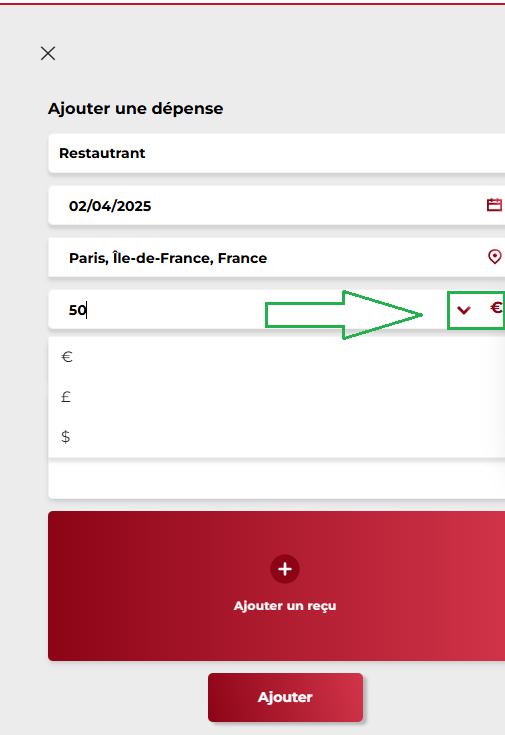
Total amount (incl. tax) +Currency
Category
Comment (optional)
Receipt (mandatory)
Click Add
The total amount (incl. tax) of expenses is calculated automatically.
.png)
Change currency:
4. Submit the Expense Report
Once all expenses are added:
Click Submit
The status changes from Draft to Pending for client validation
.png)
5. Validation and Reimbursement
The client can approve or reject the report
Once validated, expenses can be reimbursed according to internal procedures
Did this answer your question?


